Change the Color of Any Object Online
Select clothing, hair or any object and recolor it while keeping the original texture and lighting, free, right in your browser.
How it works
- Upload an image: JPG, PNG or WebP.
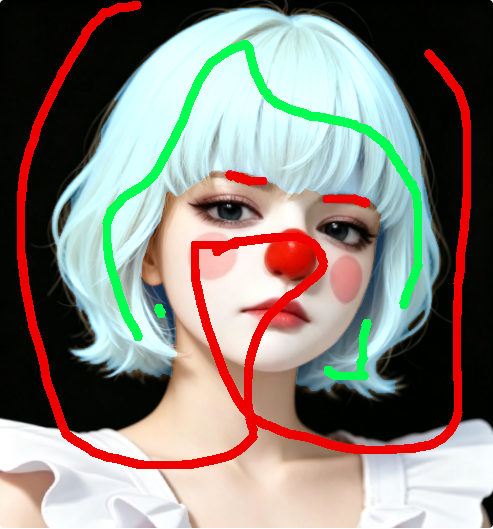
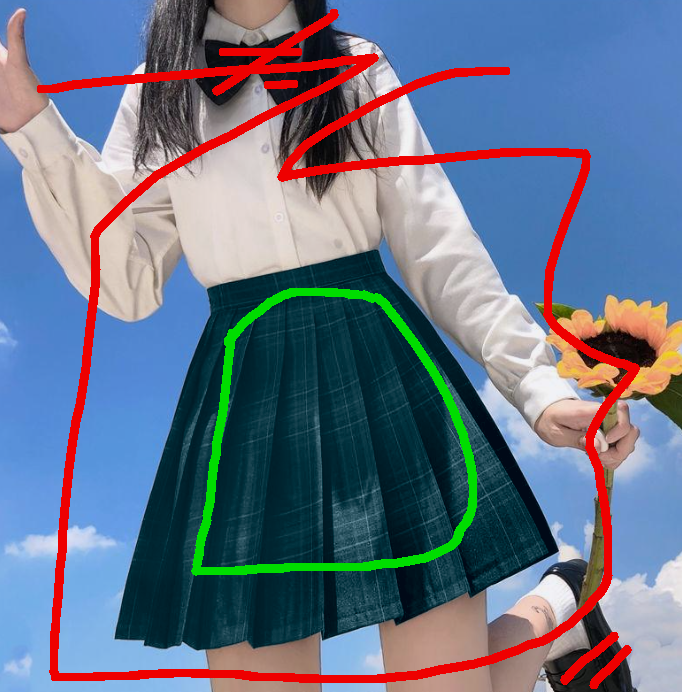
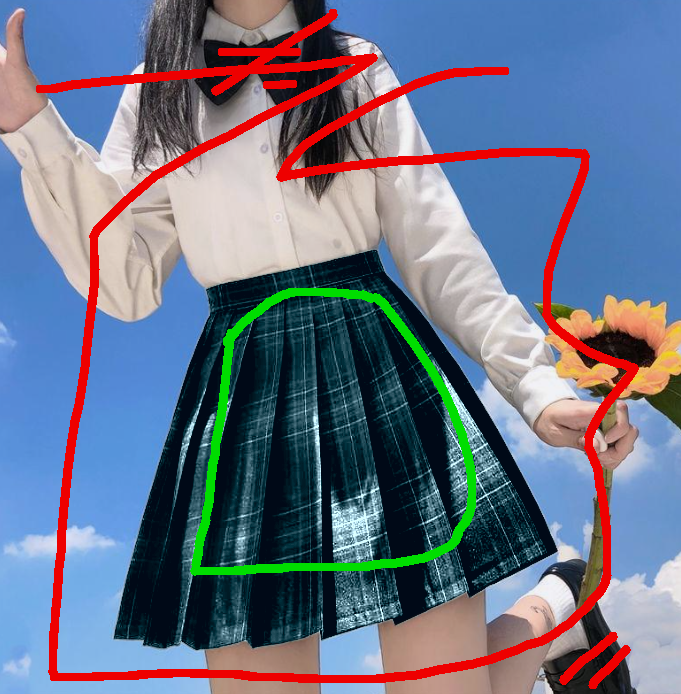
- Mark the object and background: paint green strokes on what to recolor, red strokes on what to keep unchanged.
- Generate the selection: GrabCut grows a precise mask around the object.
- Pick a color: choose the target color and adjust Texture and Contrast.
- Apply and download: recolor the object and save the result.
Example: recolor a character's hair
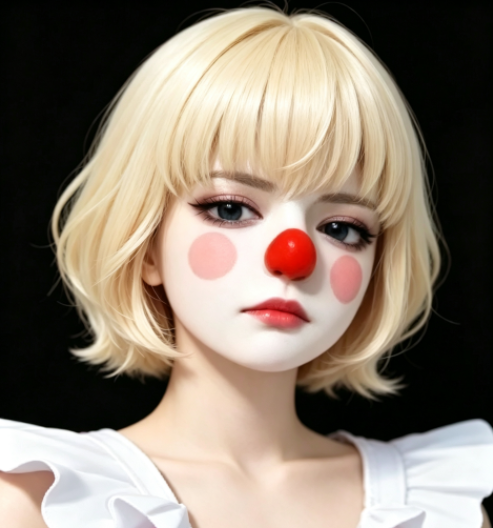
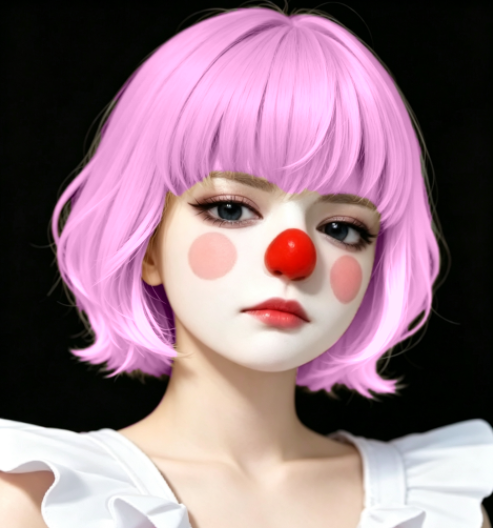
Here we change an anime character's hair from beige to purple.
1. Prepare the image
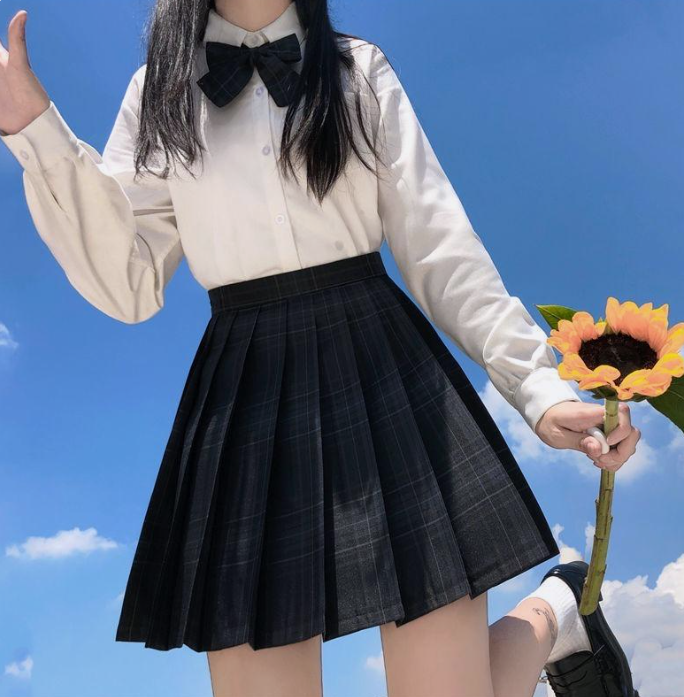
Upload the photo you want to recolor.
2. Select the region
Mark the hair as foreground and generate the mask.
3. Pick a color, then tune Texture and Contrast
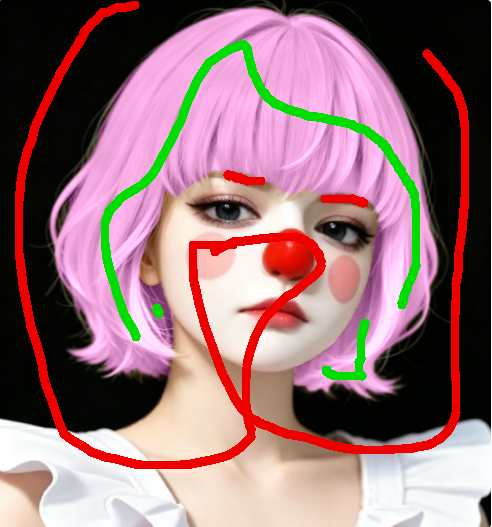
Choose the target color. Texture controls how much surface detail is kept. A low value flattens the surface, while a higher value keeps the folds visible.
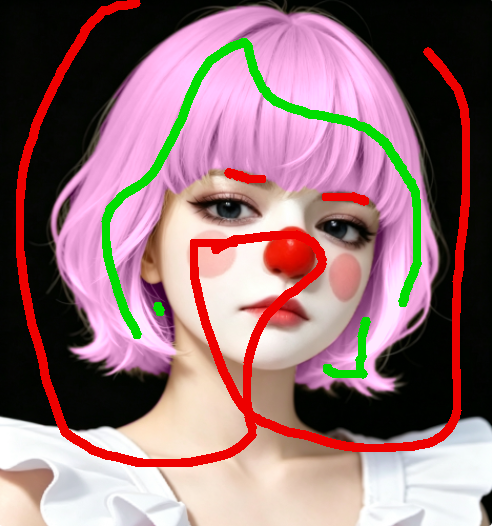
Contrast amplifies the shading and matters most when recoloring a dark object to a light color. This comparison uses a different photo from the walkthrough above to make the effect clearer.
4. Save the image
Download the recolored image when it looks right.
How the recolor works
The tool does two things: first it selects the object, then it changes its color.
Selection with GrabCut
You mark a little foreground and a little background, and GrabCut grows a precise selection around the object, the same algorithm used in the cutout tool.
Color replacement in the Lab color space
The recolor works in the Lab color space, which separates brightness from color. The tool keeps the original brightness and surface detail while replacing only the hue and saturation, so folds, shadows and lighting stay natural.
Texture
Texture controls how much of the original surface detail (folds, wrinkles and fabric weave) is preserved. Low values flatten the surface for a smooth, even look; higher values keep the folds visible.
Contrast
Contrast amplifies the shading of the original surface. It matters most when recoloring a dark object to a light color: without enough contrast the result looks flat and washed out, so raise Contrast to restore the natural depth, folds and shadows.
What can I use this for?
- Change the color of clothing: recolor shirts, dresses, jackets and more.
- Change hair color: try a new hair color on a portrait or character.
- Recolor any object: furniture, vehicles, products and anything else you can select.
Frequently asked questions
Can I recolor anything, not just clothing?
Yes. Any object you can select works: hair, furniture, vehicles, products and more.
Will the texture stay visible?
Yes. The tool keeps the original brightness and texture and only changes the color.
Is this tool free?
Yes, free, no signup, no watermark, and images are processed locally in your browser.